
You are a customer subscribed to VTO database
You are a customer not subscribed to VTO database
Once you click the Next button on the Check page, you will be redirected to the Confirm page.
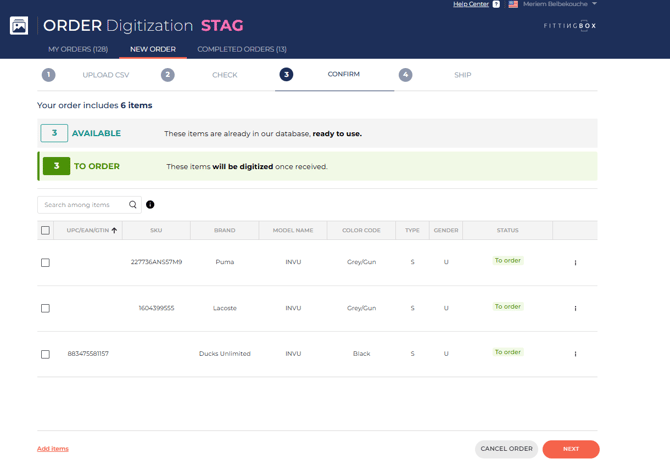
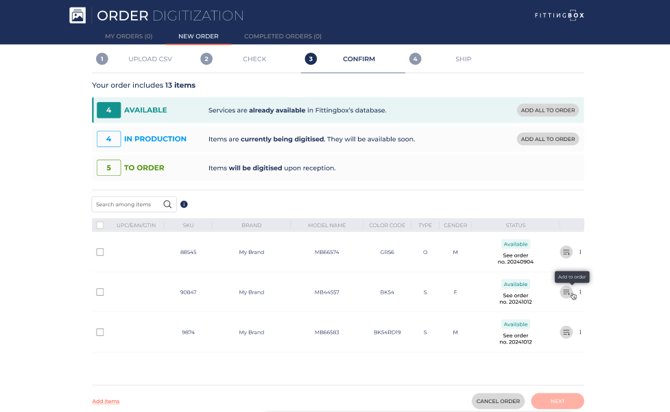
This page displays a table listing the items entered in your CSV file.
Above the table, three statuses are shown, depending on your CSV, indicating the current state of the ordered items.
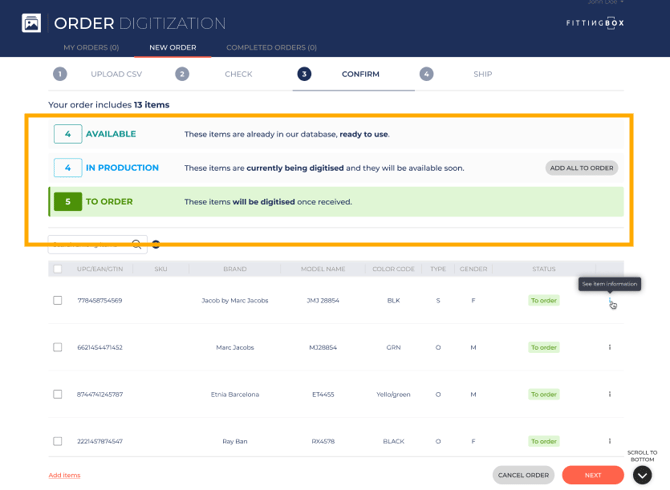
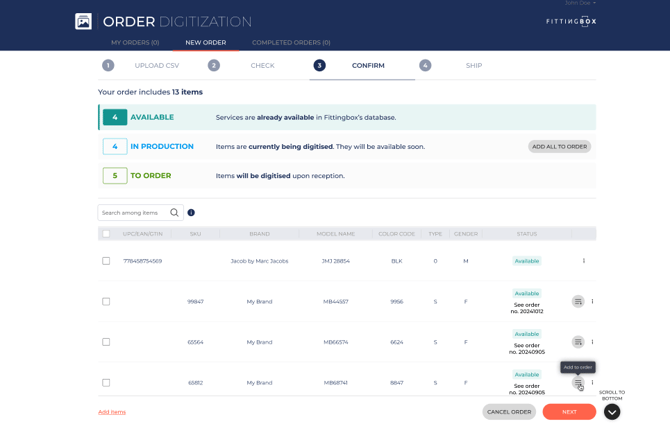
Available means items are already in our database, ready to use.
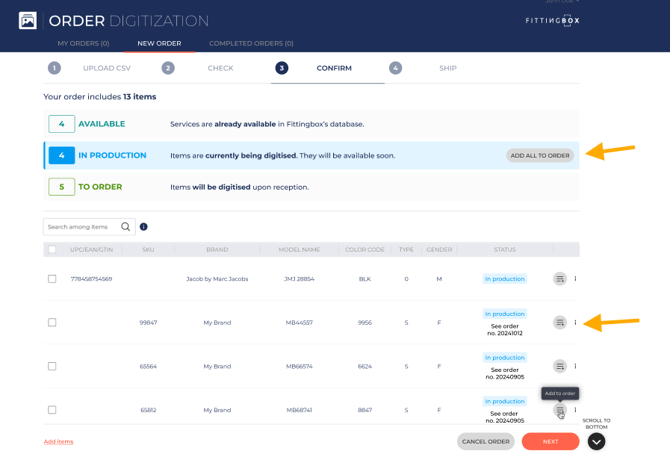
In production These items are currently being digitised and they will be available soon.
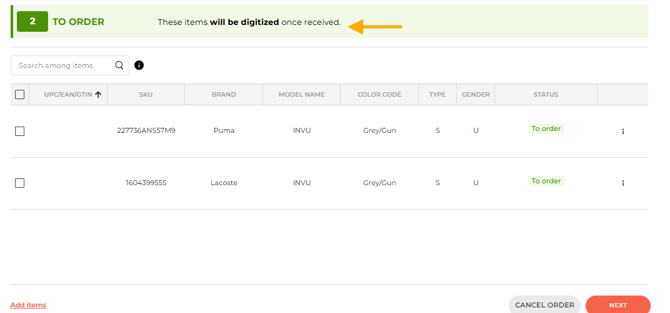
To Order These items will be digitised once received.
These statuses do not appear for every order. Their display depends on the status of the items entered in your CSV file.
Examples:
-
You may have only items with the To order status.
-
You may have To order and Available items only.
-
You may have In production and Available items only.
-
And other combinations may occur.
Customer Types:
There are two types of customers:
-
Customers with the Database module
-
Customers without the Database module
1. You are a customer subscribed to the VTO Database
You order one or multiple services (if compatible) from the following services:
- VTO Standard from Studiobox
- VTO Premium from Studiobox
- VTO Standard from Photo
- Standard Photos
- Specific Photos
You order public brand items from tier 1, 2, and 3↓
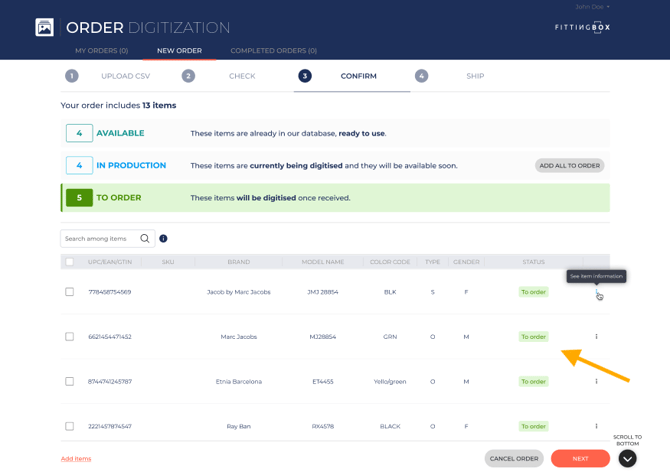
Items indicated as To order ↓
Then, by default, they are added to my order.
They will be digitized once received.
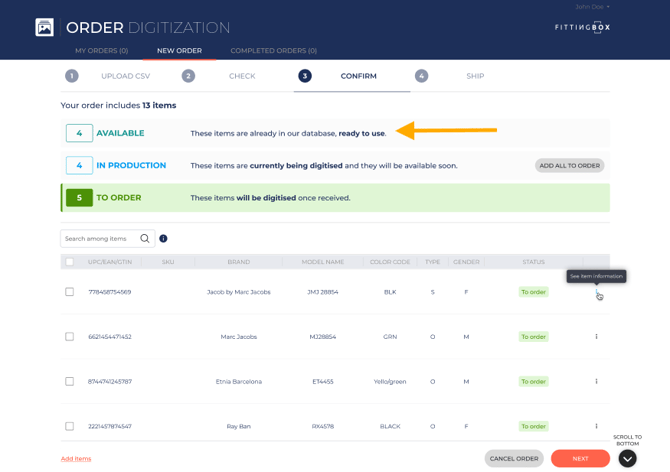
Items indicated as Available in Fittingbox database ↓
Then I cannot add them to the order
They are already ready to use.
“Available items tems are removed from the order even though they are present in the CSV.”
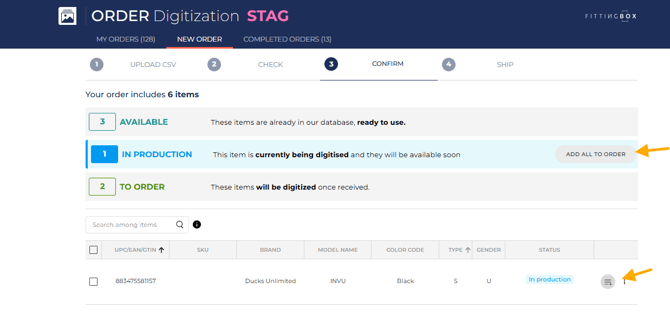
- Items are indicated as In Production↓
Then, by default, they are tagged as In Production and are not included in the order.
- I can:
- Either wait until they are available in the database
- Or add them to my order, and they will become items To order.
You can add all items by clicking the Add all to order button, or add individual items by clicking the Add to order button displayed in the table.
You order private brand items from tier 4
Items indicated as To order ↓
Then, by default, they are added to my order.
They will be digitized once received.
Items indicated as Available in the Fittingbox database↓
- Then, by default, they are not included in the order.
- If I have already ordered them, I can see the most recent order in which the items were ordered and they are ready to use.
- I can also add them to the order, and they will then become items To Order.
Items are indicated as In Production in Fittingbox Database↓
- If I have already ordered them, I can see the most recent order in which the items were ordered and they are in production.
- By default, they are tagged as In Production and are not included in the order.
- I can:
- Wait until they become available in the database.
- Or add them to my order, and they will become items To order
2-You are a customer not subscribed to the VTO Database
And you place an order one or multiple services (if compatible) from the following services :
- VTO Standard from Studiobox
- VTO Premium from Studiobox
- VTO Standard from Photo
- Standard Photos
- Specific Photos
ق
You order public and/or private brand items from tiers 1, 2, 3 and 4↓
Items indicated as To order ↓
Then, by default, they are added to my order.
They will be digitized once received.
Items indicated as Available in the Fittingbox database↓
- Then, by default, they are not included in the order.
- If I have already ordered them, I can see the most recent order in which the items were ordered and they are ready to use.
- I can also add them to the order, and they will then become items To Order.
Items are indicated as In Production in Fittingbox Database↓
- If I have already ordered them, I can see the most recent order in which the items were ordered and they are in production.
- By default, they are tagged as In Production and are not included in the order.
- I can:
- Wait until they become available in the database.
- Or add them to my order, and they will become items To order
You can add all items by clicking the Add all to order button, or add individual items by clicking the Add to order button displayed in the table.