
On this page, you will find which Shopify Themes guarantee automatic positioning of the Try-On button or icon, along with guidance on how to fix display issues.
Frequently asked questions
How are Virtual Try-on elements (buttons & icons) added to my store ?
When you enable a Virtual Try-on element from the Shopify Admin (App settings or Theme Customizer), the app attempts to automatically inject the element into your product or collection pages.
If I enable an element from the app on my theme editor, is it displayed on my website without any manual changes?
It depends on your Shopify theme and on the element type. Some themes fully support automatic placement, while others may require additional configuration.
Theme Compatibility
The app is compatible with any Shopify theme. However, in some cases, you may need to make a few adjustments in the app’s settings to place the icon or button exactly where you need it (see tutorial below).
Automatic placement for top Shopify themes
Here is a view of our client’s most used Shopify themes. For each top theme, we have verified the automatic display of all Virtual Try-on elements.
❌: The element automatically displays in an incorrect or abnormal location
⚠️: The element automatically displays in the correct location but is not readable or visually usable
✅: The element automatically displays correctly and is fully readable
|
Shopify Theme |
Product icon
|
Product button |
Collection icon |
Collection button |
Latest checked version |
|---|---|---|---|---|---|
|
Dawn |
|
|
|
|
v15.4.1 |
|
Prestige |
|
|
|
|
v10.11.0 |
|
Horizon |
|
|
|
|
v3.2.1 |
|
Impact |
|
|
|
|
v6.12.0 |
|
Sense |
|
|
|
|
v15.4.1 |
|
Rover |
|
|
|
|
v6.3.0 |
|
Baseline |
|
|
|
|
v4.0.0 |
|
Symmetry |
|
|
|
|
v8.1.1 |


Troubleshooting: Try-On icon or button missing or misplaced
If the Try-On icon or button is not displayed or appears in the wrong position on your product page or catalog page, follow the steps below in order.
🔎Option 1 [if button on product page] : Use the Product Button Block instead of the app embed to configure the button on your product page
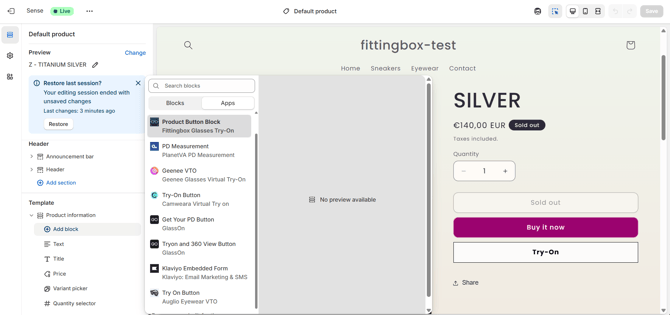
-
Open Online Store → Themes → Customize
-
Navigate to the Default Product page
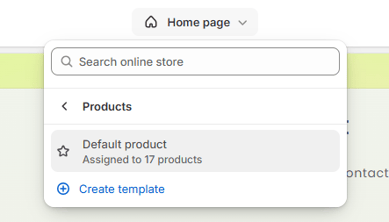
-
Disable the app embed "Product button" in the app embed section
Disable it using the switch:
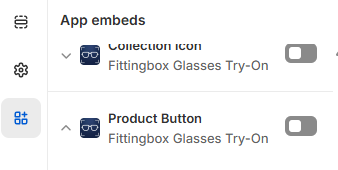
This prevents duplicate or conflicting placements before retrying another method.
-
Navigate to the relevant page (Product or Collection)
-
Select the section where you want the Try-On button to appear
-
Click Add block
-
Add the Product Button Block related to the Fittingbox Glasses Try-On app
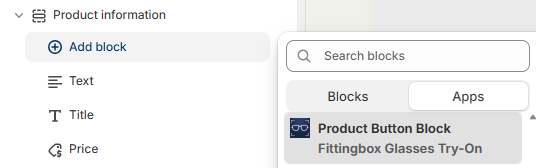
-
Place it exactly where the element should appear
This method allows precise control over the element’s position within the product page layout.
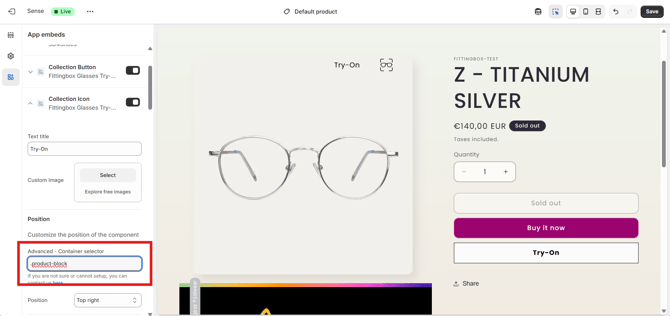
🔎Option 2: Use the "Advanced Container Selector" to display the icon or button in the exact location
-
Open Online Store → Themes → Customize
-
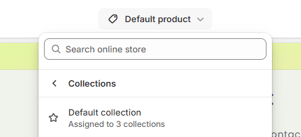
Navigate to the relevant default page (Default Product or Default Collection)
-
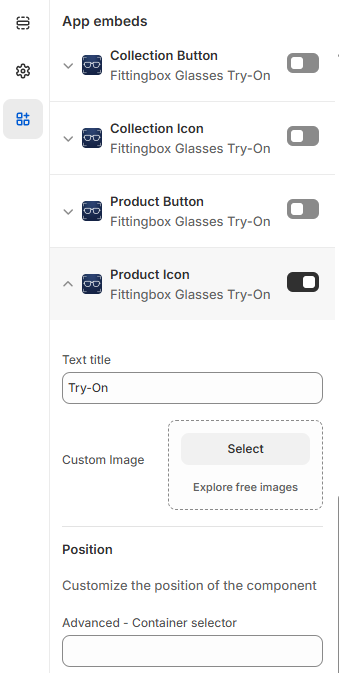
Activate the switch for the element (Collection Icon or Collection Button or Product Icon)
-
Open the element’s settings (settings can be accessed when clicking on the arrow on the right). Here for example for the Product Icon:
-
Locate the "Advanced - Container Selector" field
-
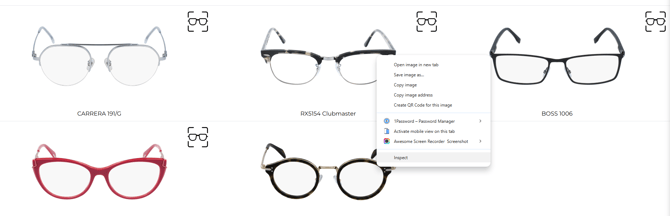
Open your storefront page in a browser (example Chrome or Safari)
-
Use your browser’s Inspect tool by right-clicking on the page and selecting “Inspect.”
-
Identify the HTML container (DIV) where the element should be displayed
-
Copy the CSS class or selector of that container
-
Paste it into the Advanced Container Selector field with adding a point before. Example: “.product-card” (put a dot followed by the container name).
App limitations
-
VTO elements can only be displayed on Collection Pages and Product Pages. It is currently not possible to display a CTA on the Home Page
-
All products must be loaded at initial page load in order to synchronize the products and make the VTO elements visible on a Collection Page
Best Practices
-
Always test changes on a preview before publishing
-
Use the 'Advanced - Container Selector' only if simpler methods fail
Need Help?
If the issue persists after following all steps:
-
Contact our support team
-
Include your theme name, version, and screenshots of the issue
-
Mention which Try-On element is affected (product icon, product button, collection button, collection icon)
To help resolve the issue, our team will request collaborator access to your Shopify store. This will allow us to review your products and app settings, check the integration with your theme, and make any necessary corrections. The requested permissions are listed below.
| Products | View |
| Create and edit | |
| Manage inventory (excluding transfers) | |
| Online store | Themes |
| Edit code (including generating theme blocks) | |
| Apps and channels | Manage and install apps and channels |
| Approve app charges |